
This guide explains the meaning and usage of each configuration item (setting variable) displayed in the "Startup" tab of the game panel. Since Satisfactory allows you to configure the server name and password in-game, we'll clarify what you can actually change from the panel side.
Revision History
- v1.0
- June 2026 — Initial version
Settings Are Divided Into "2 Locations"
Satisfactory server settings are divided into two main locations. Understanding this distinction from the start will help you avoid confusion.
| Configuration Location | What You Can Configure |
|---|---|
| Game Panel "Startup" Tab (explained on this page) | Operational settings such as auto-update, auto-save generations, connection timeout, and beta version selection |
| Server Manager In-Game (after connecting and registering as an administrator) | Server name, admin password, join password, and game rules (difficulty, various multipliers, etc.) |
Note that the server name and password are configured in-game, not from the game panel.
Configurable Settings in the Game Panel (List)
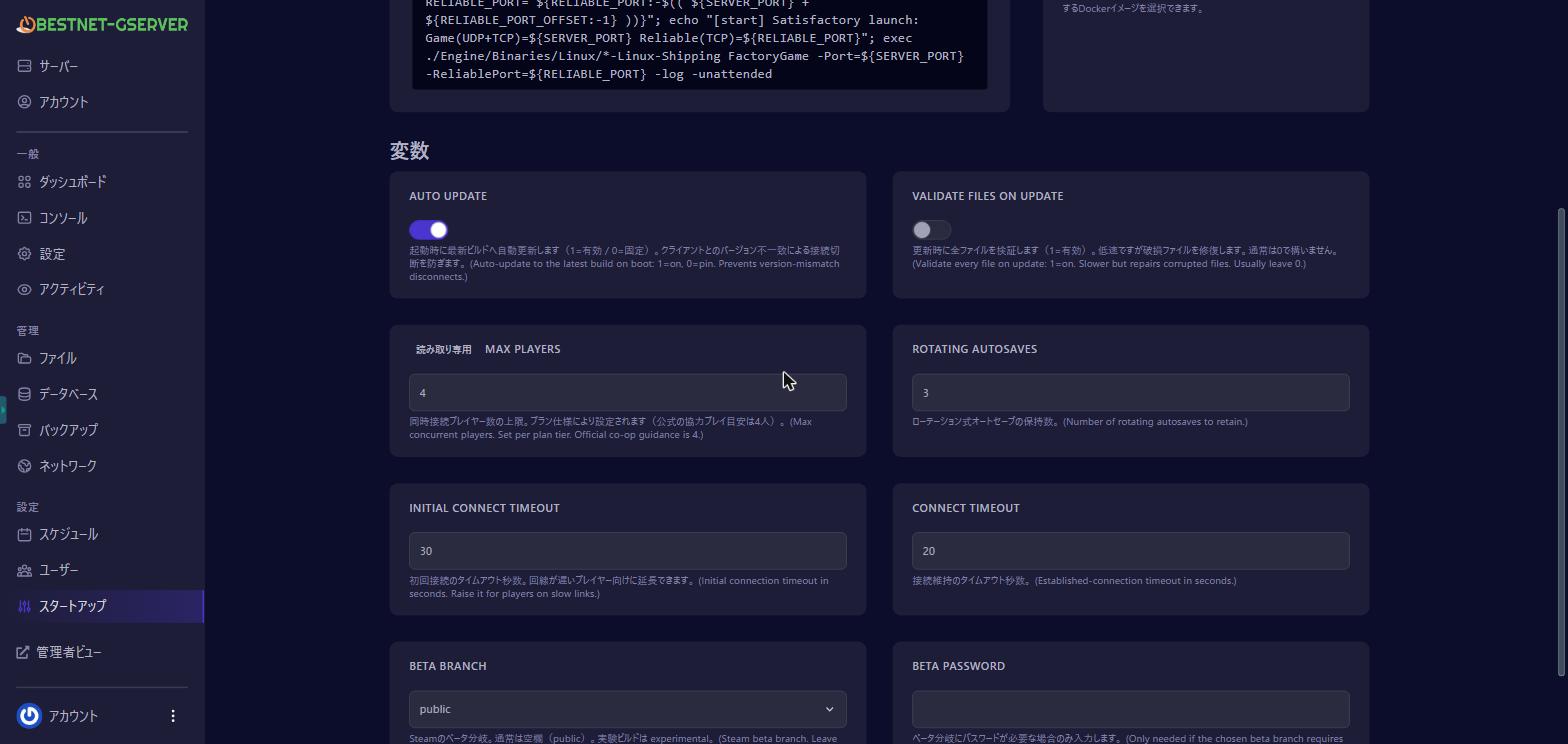
| Item (Panel Display Name) | Variable Name | Default Value | Description |
|---|---|---|---|
| Auto Update | AUTO_UPDATE | 1 (Enabled) | Automatically updates the game to the latest build on each startup |
| Validate Files On Update | VALIDATE_FILES | 0 (Disabled) | Verifies all files during updates (slow, for repair purposes) |
| Max Players | MAX_PLAYERS | Plan-dependent | Maximum concurrent players (cannot be changed, linked to plan) |
| Rotating Autosaves | NUM_AUTOSAVES | 3 | Number of auto-save generations (retention count) |
| Initial Connect Timeout | INIT_CONNECT_TIMEOUT | 30 | Initial connection timeout (seconds) |
| Connect Timeout | CONNECT_TIMEOUT | 20 | Connection maintenance timeout (seconds) |
| Beta Branch | SRCDS_BETAID | Blank (public) | Game version branch selection (advanced users) |
| Beta Password | SRCDS_BETAPASS | Blank | Beta branch password (required only when applicable) |
Detailed Description of Each Item
Auto Update
Setting this to 1 automatically updates the game to the latest build each time the server starts. When the Satisfactory main client is updated, your server must also be up-to-date so that friends with the latest version can connect. It is recommended to keep this set to 1 (enabled) normally.
Set it to 0 only if you want to temporarily lock the server to a specific version (such as waiting for MOD or save data compatibility). Changes take effect after restart.
Validate Files On Update
Setting this to 1 verifies all game files against the source (Steam) during updates and repairs any corrupted files. Verification takes time, so normally leave it set to 0 (disabled).
If the server won't start properly, behaves oddly, or crashes, try setting this to 1 and restarting once. If file corruption is the cause, this may resolve the issue. After confirming, set it back to 0 for faster startup times.
Max Players
This is the maximum number of players that can connect simultaneously. This item is configured per contract plan and cannot be changed by you (it is displayed but not editable). If you want to play with more people, consider upgrading to a higher plan.
Rotating Autosaves
This is the number of auto-save generations to retain. Increasing this number allows you to revert to more past points, but also uses more disk space.
Initial Connect Timeout / Connect Timeout
These are connection-related timeout values in seconds. If friends with slow connections or from distant locations disconnect during connection, increasing these values may improve the situation.
- Initial Connect Timeout:Waiting time until connection is established (default: 30 seconds)
- Connect Timeout:Time until response loss is considered a disconnection (default: 20 seconds)
In most cases, the default values are fine.
Beta Branch / Beta Password (Advanced Users)
Beta Branch selects the version branch of the game to install.
- Blank:Standard public version (public / stable). Most users should leave this as is.
experimental:Experimental version (new features arrive faster, but may be unstable).
Beta Password should be filled in only if the selected branch requires a password. Since public / experimental do not require one, normally leave this blank.
Auto-Managed Items (No Changes Required)
The following items are automatically optimized on our end and are either not displayed in the game panel or cannot be changed. You do not need to configure them.
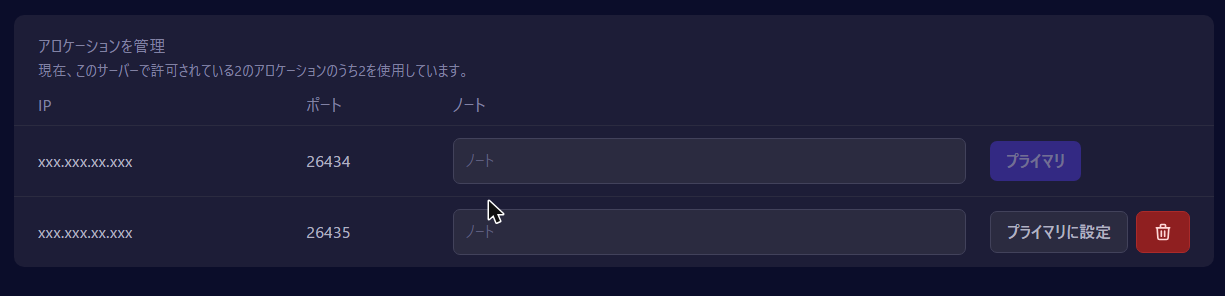
- Connection Port (Game / Reliable):Automatically assigned when first created. The Reliable port is automatically allocated with consecutive numbers after the Game port. Actual port numbers can be confirmed in the "Network" tab (see "How to Check Server Port Numbers" for details).
- Game Identification ID:Fixed for Satisfactory.
Settings Not Available in Game Panel (Configured In-Game)
The following settings are configured in-game using the server manager in Satisfactory, not from the game panel (available after connecting to the server and registering as an administrator).
- Server name
- Admin password
- Join password
- Game rules (difficulty, resource and building settings, etc.)
Frequently Asked Questions
Should Auto Update be enabled or disabled?
Enabled (1) is normally recommended. This prevents friends with updated versions from being unable to connect when the game is updated. Set it to 0 only if you have a specific reason to lock a particular version.
My server is unstable / won't start
First, set Validate Files On Update to 1 and restart to check for file corruption. If that doesn't resolve it, try reinstalling (save data is preserved) or contact our support team.
I can't increase Max Players
Max Players is fixed per plan and cannot be changed. To play with more people, upgrade to a higher plan (you can change with pro-rata billing while maintaining your data).
I can't find the server name or password setting
In Satisfactory, these are configured in the server manager in-game. There are no items for these in the game panel.
I changed the settings but they're not taking effect
Settings in the "Startup" tab take effect after a restart. After changing values, execute the "Restart" button in the panel.