
🔒 How to Set a Password on a Windrose Server
Steps to enable password protection from the Startup tab
Table of Contents
1
Prerequisites
This guide provides instructions for setting a password on a dedicated Windrose server using the BESTNET-GSERVER game panel.
⚠️ Important: Settings cannot be configured by editing files directly
On Windrose servers, even if you edit R5/ServerDescription.json directly, it will be automatically overwritten by the Startup tab settings when the server starts. All server settings, including passwords, must be configured from the Startup tab.2
Revision History
| Version | Created | Update Details | Author |
|---|---|---|---|
| 1.0 | 2026/4 | Initial creation | BESTNET-GSERVER |
3
Open the Startup Tab
Click 「Startup」 in the left menu under Settings in the game panel.Scroll down to find the 「PASSWORD PROTECTED」 and 「SERVER PASSWORD」 configuration options in the “Variables” section.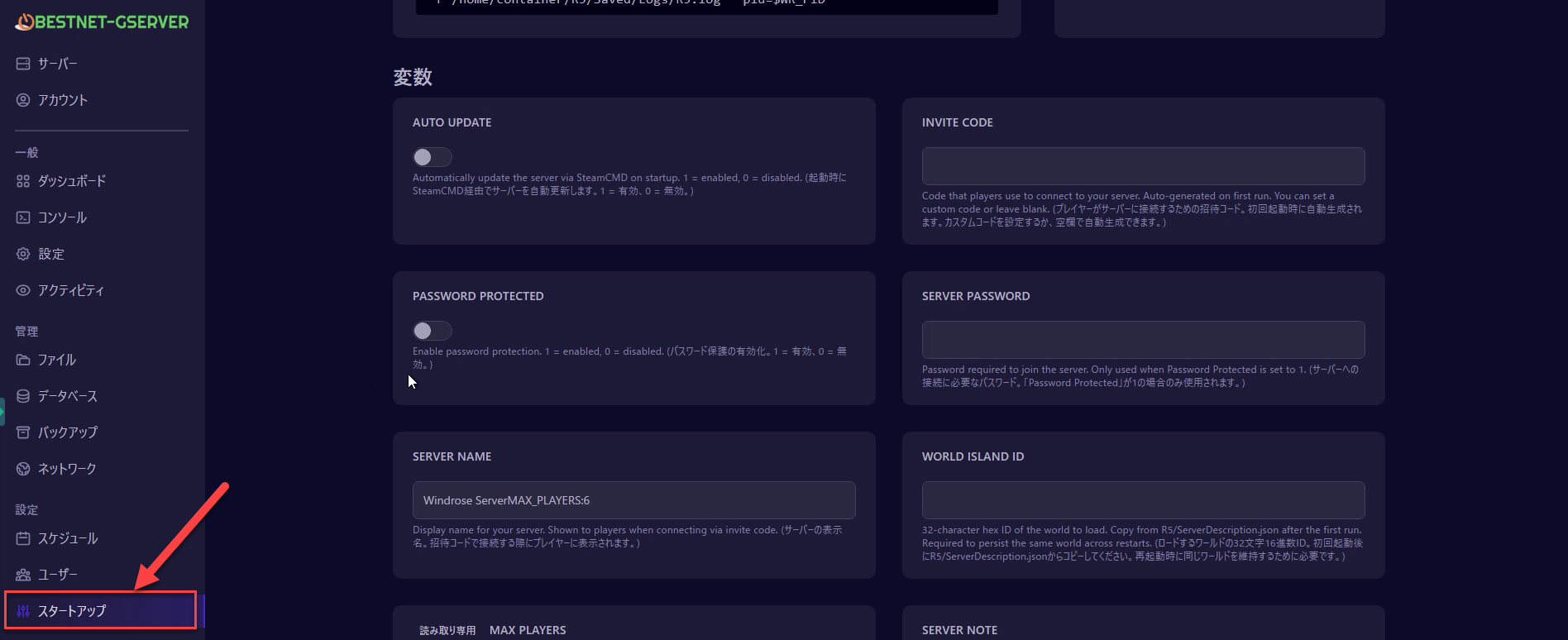
▲ PASSWORD PROTECTED (left) and SERVER PASSWORD (right) configuration options
4
Enable Password Protection
Configure the following two settings: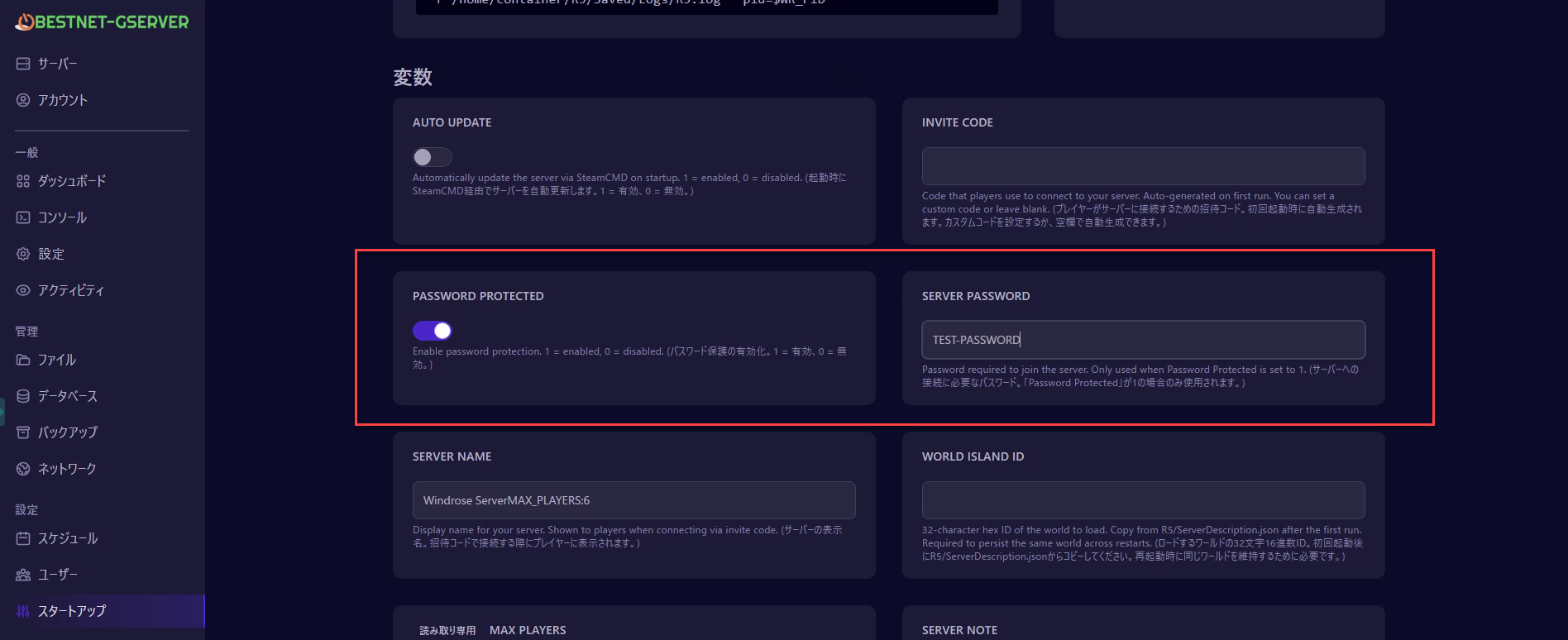
① Turn ON the PASSWORD PROTECTED toggle switch
Click the toggle switch to enable it. When it turns blue, it is in the ON state.② Enter a password in the SERVER PASSWORD field
Enter your desired password using half-width alphanumeric characters (maximum 20 characters).▲ PASSWORD PROTECTED turned ON and password entered in SERVER PASSWORD field
5
Restart the Server
Restart the server to apply the settings. Return to the dashboard and click the 「Restart」 button.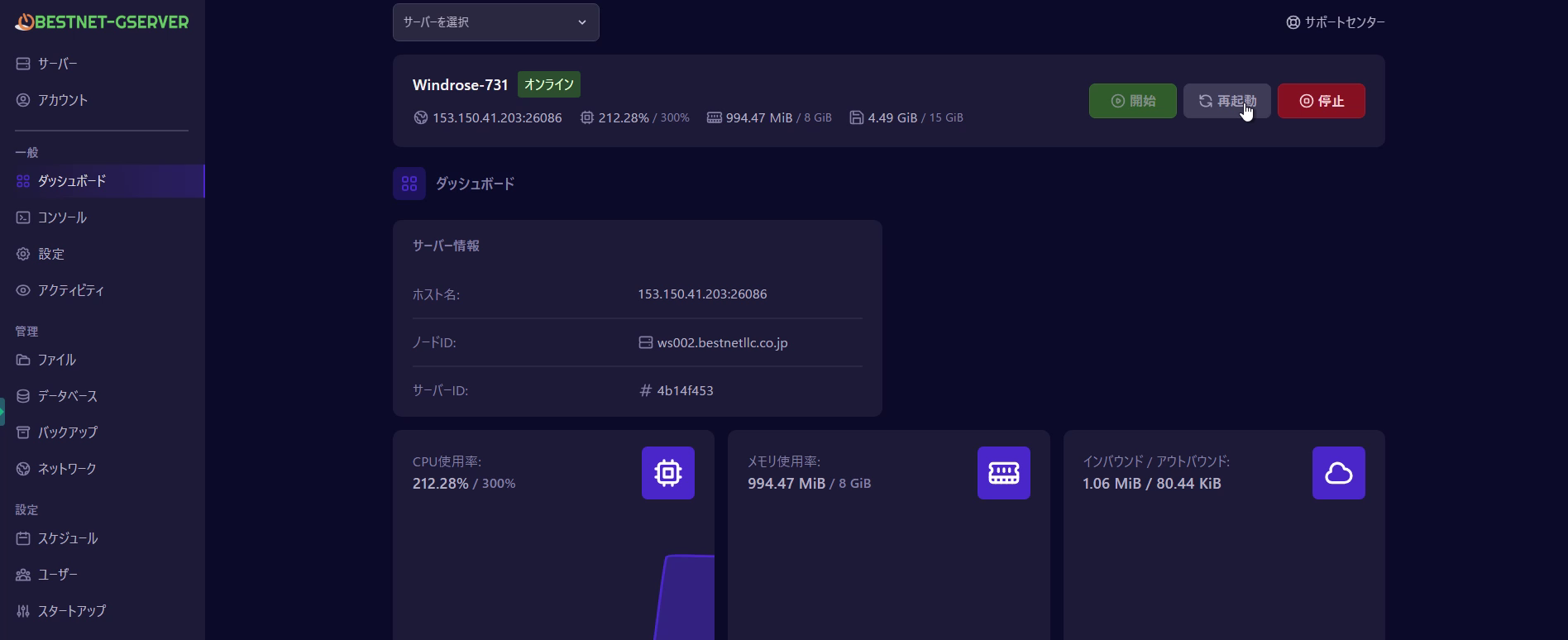
▲ Click the “Restart” button on the dashboard
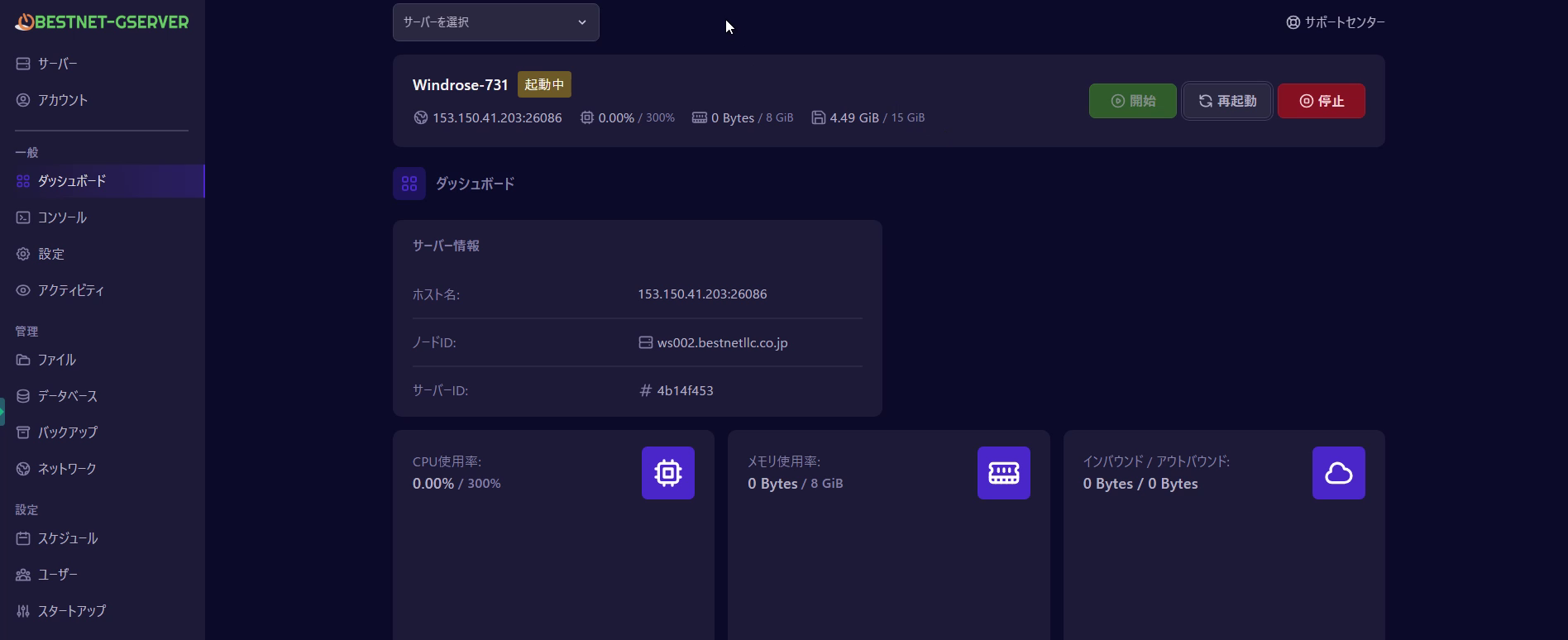
The server will enter a restarting state. Please wait until the status returns to Online.▲ Server restarting status. It will return online in a few minutes.
✓
Verify Settings Have Been Applied
Verify that the settings have been properly applied. From the left menu, click 「Files」 → 「R5」 folder → 「ServerDescription.json」.If you see 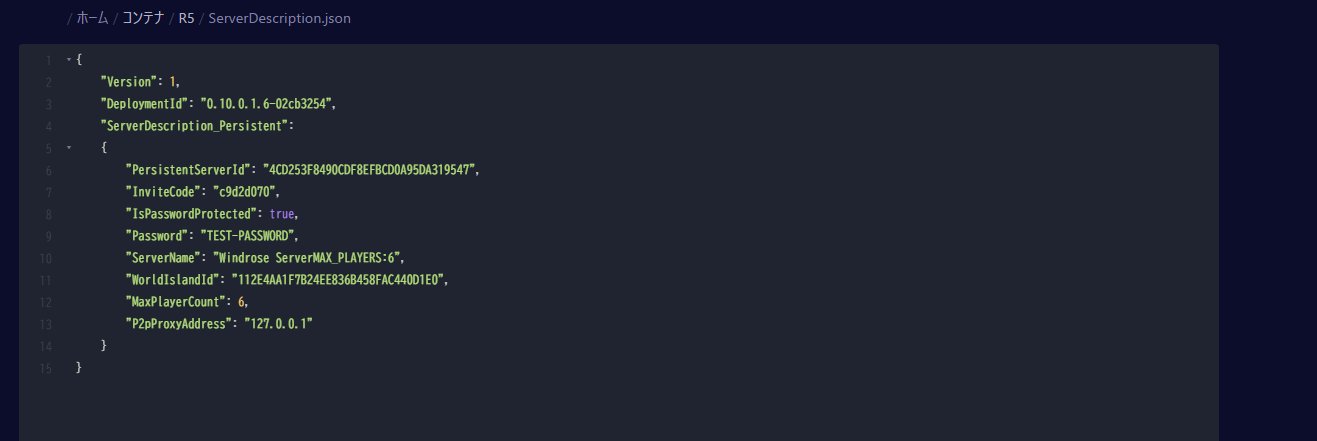
"IsPasswordProtected": true and the password you set displayed in "Password", the configuration is successful.▲ Password settings properly reflected in ServerDescription.json
💡 How to connect from the game
After setting the password, a password input screen will appear when connecting via invitation code. Share both the password and invitation code with your teammates.📝 To disable the password
To remove the password, turn OFF the 「PASSWORD PROTECTED」 toggle switch in the Startup tab and restart the server.