Basic Usage
The BESTNET Game Server Panel provides a simple function to change the version of Minecraft Bedrock servers.
STEP1. Open the Server Page
Open the server page for the Bedrock Edition server whose version you want to change. It is recommended that you stop the server before performing version changes (there is a risk of problems if you replace core files while the server is running).
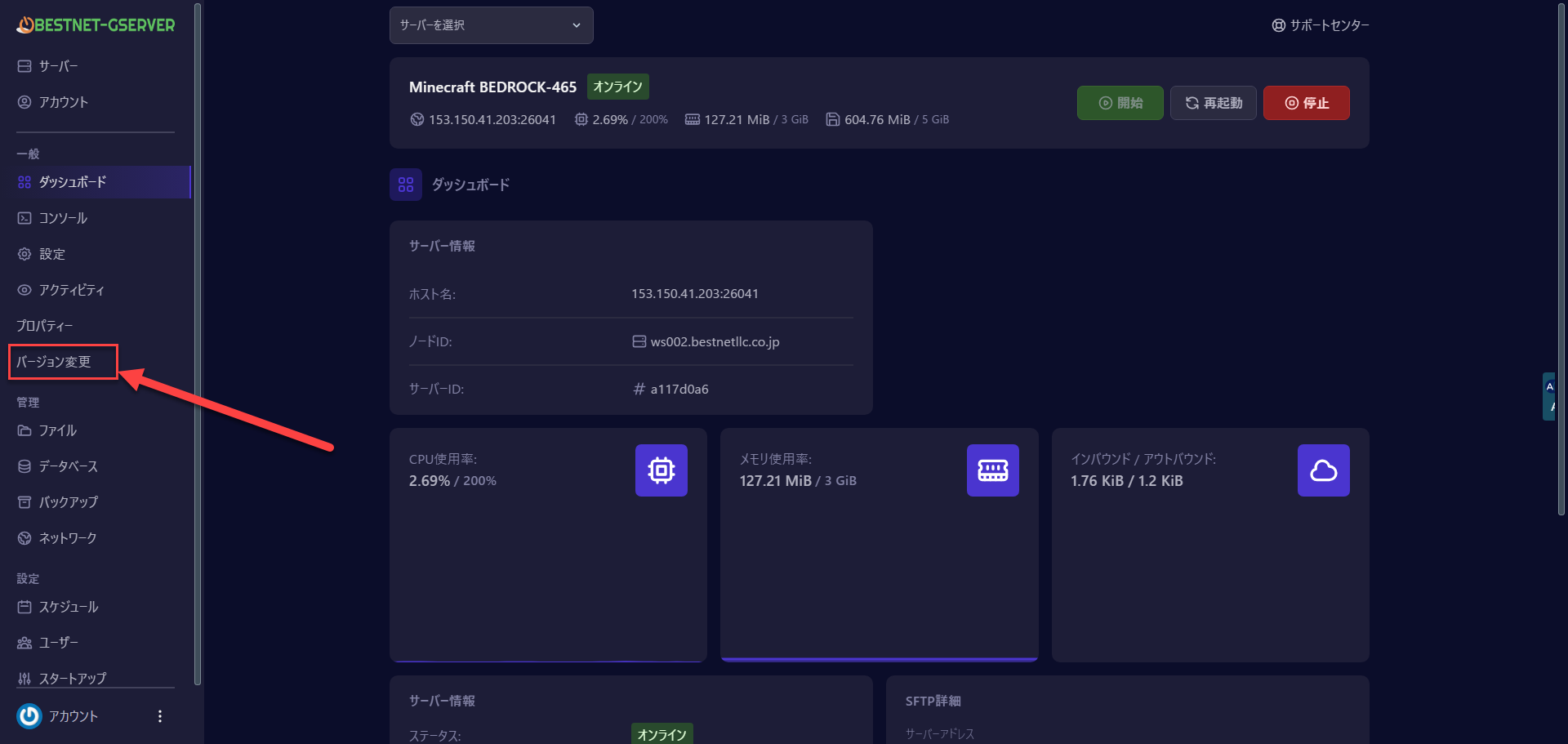
STEP2. Click the Version Changer Button
STEP3. Check the Version List
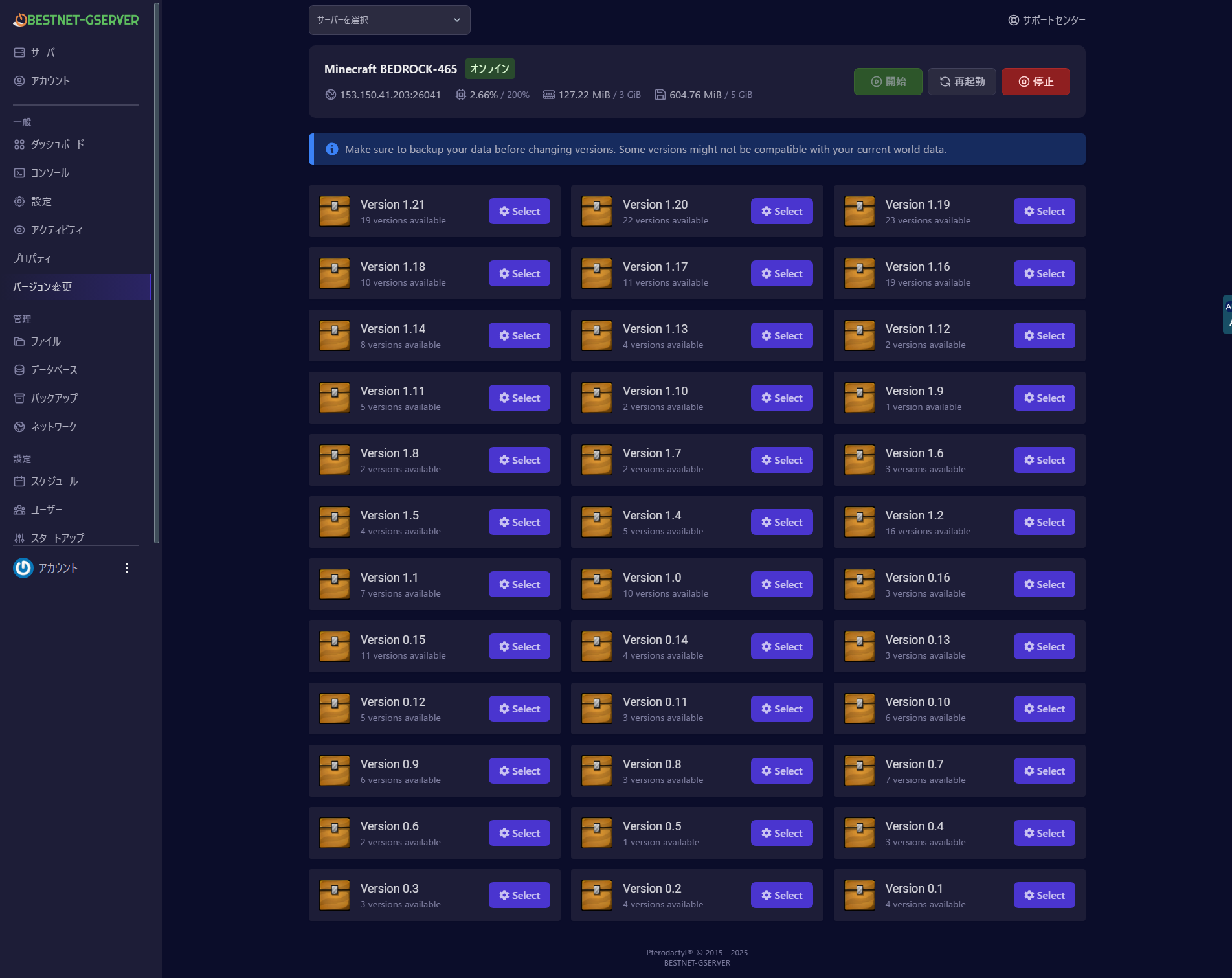
A list of other available versions will be displayed. From the list of provided Bedrock versions, find the target version. If versions are collapsed by major version (for example: 1.19, 1.20, etc.), expand them to view detailed build numbers and release date information.
For example, if you are currently using 1.20.30 and want to update to 1.20.32, open the 1.20 series list and look for “1.20.32”.
STEP4. Select the Version
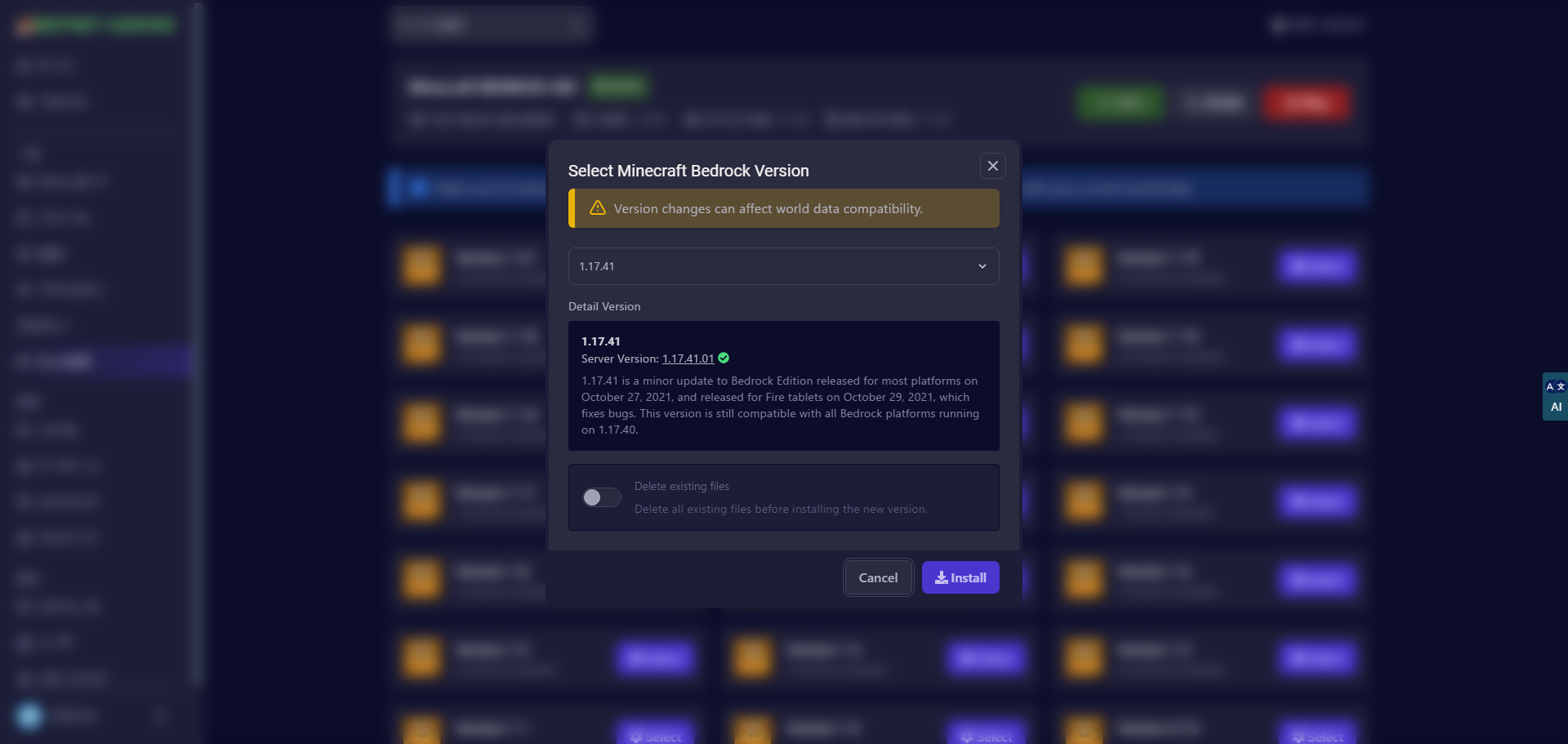
Select the target version for the change. When selected, additional information about that version (such as links to release notes or important compatibility information) may be displayed. The addon will perform a compatibility check, and if there are concerns about impacts to world data, a warning will also be shown.
STEP5. Execute the Version Change
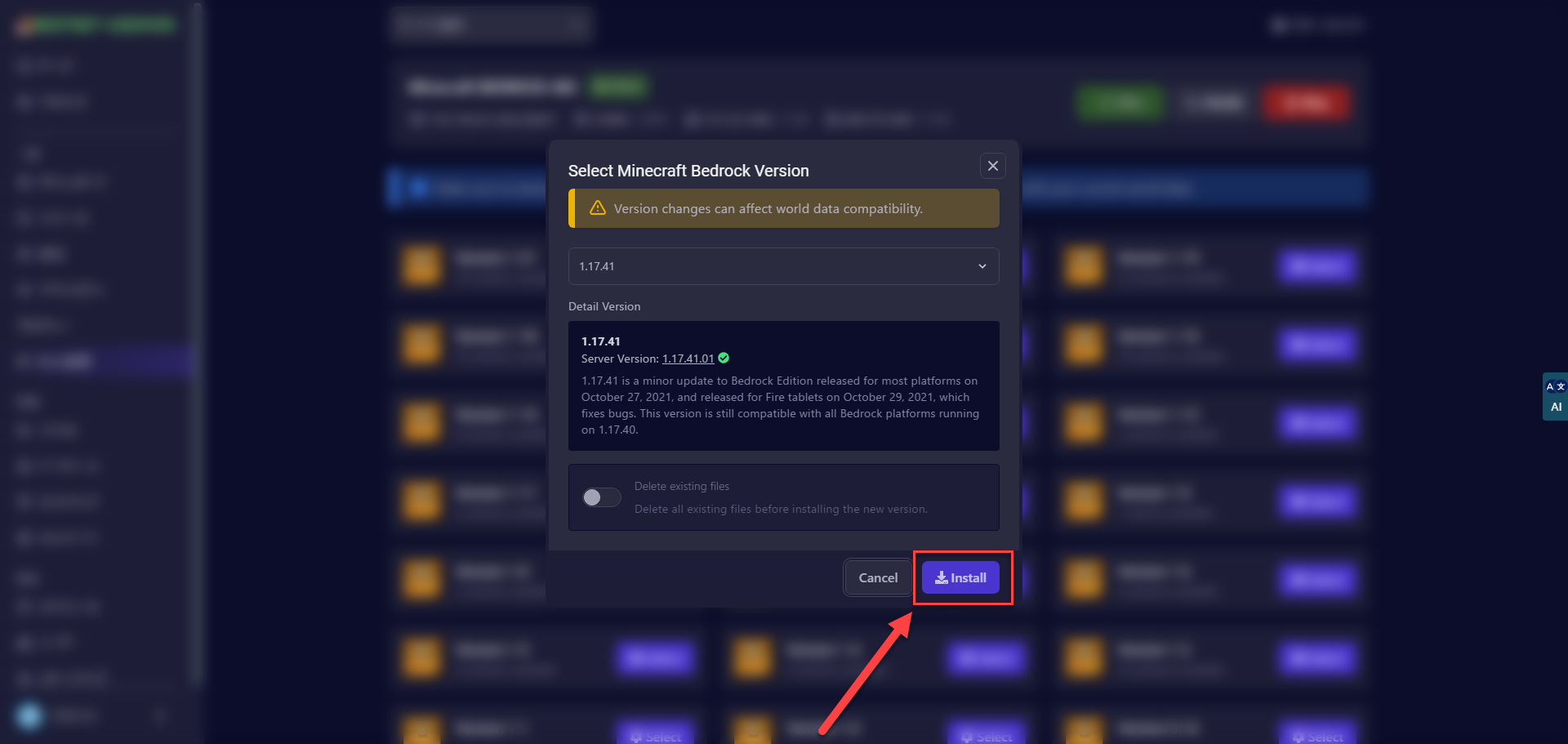
Click the Install button. After a confirmation message, the download and installation process will begin. The addon will obtain the official Bedrock server package of the selected version online and replace the current server files. During the process, a progress bar and log messages will be displayed on the screen. Avoid performing other operations until the process is complete.
When completed successfully, a message reading “Install Successfully” will be displayed in English, and the installation process will end.