
目次
| Note |
| The server description may be temporarily overwritten with numbers. This is due to a bug and will be resolved by a server restart. |
STEP1. Log in to the Game Panel.
Access the Game Panel using your account information and open the server management page.
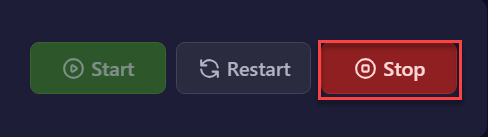
STEP2. Click the “Stop” button in the upper right of the item in “Dashboard”.
You need to stop the currently running Rust server. Click the “Stop” button on the “Dashboard” page and wait for the server to stop completely.
STEP3. Select “Startup” from the left menu.
Once the server stops, click “Startup” from the left menu to open the configuration window. From here, you can access the server description.
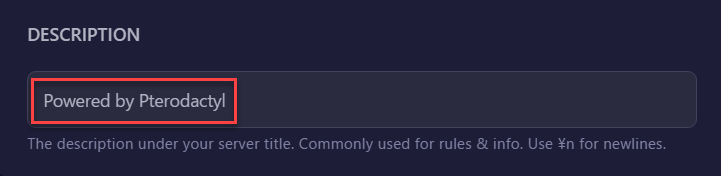
STEP4. Enter the desired server description in the [Description] field.
Write details and important information about the server in the [Description] field. As needed, you can enter “n” to create a new line.
| Note |
| To add a new line to the description, enter “n”. |
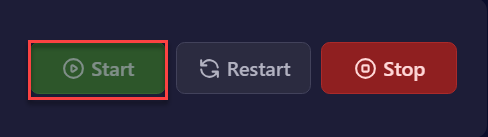
STEP5. Return to “Dashboard” and start the server with the “Start” button.
Once all settings are complete, go back to the “Dashboard” page and click the “Start” button to restart the server with the new description applied.
This completes the process of changing the server description on your Rust server.