
目次
SETUP GUIDE
This guide provides step-by-step instructions with images from the automatic server construction completion after your application, through connecting to the server from your game client.
Revision History
- v1.0
- August 2024 — Initial version created
- v1.1
- February 2025 — Added server password verification section
- v2.0
- April 2026 — Complete revision accompanying major game panel update. Manual query port assignment is no longer necessary, and all 78 detailed settings are now fully operable from the Japanese language GUI. Server password can now be confirmed and changed from the Startup tab without JSON editing in the file browser. Added recovery procedures for startup failures.
Prerequisites
Please log in to the game panel. For instructions on logging in to the game panel, see Game Panel Login and Feature Overview →Wait for Installation to Complete
After you complete your application and the service status becomes active, the game server installation will begin automatically.During installation, “Installation in progress” is displayed in the server console, and most information will not be visible. This screen typically completes in a few minutes, but may take tens of minutes depending on server load conditions or the size of the installation files.When the server installation is complete, an installation completion message will be sent to your email address from our game panel system.Confirm Server Address and Port
You can confirm your server address and game port on the server console screen in the game panel. The “Server Address” and “Port” values displayed on the right side of the screen are required when connecting from the game.Each item can be automatically copied by clicking on it.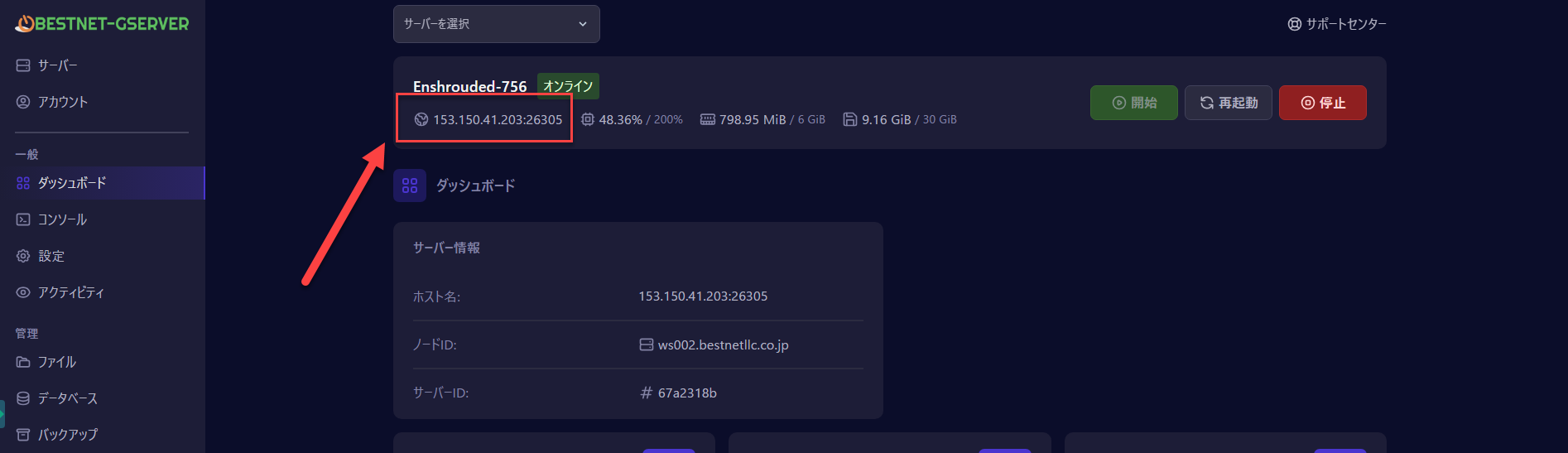
Confirm/Change Server Password
You can confirm and change the server password from the “Startup” tab in the left menu of the game panel. Unlike previous versions, there is no need to directly edit theenshrouded_server.json file.Open the “Startup” tab and find the “Server Password” item in the variables list.
An auto-generated password is entered as the initial value.If you wish to change the password to a custom one, simply edit the input box and it will be saved automatically.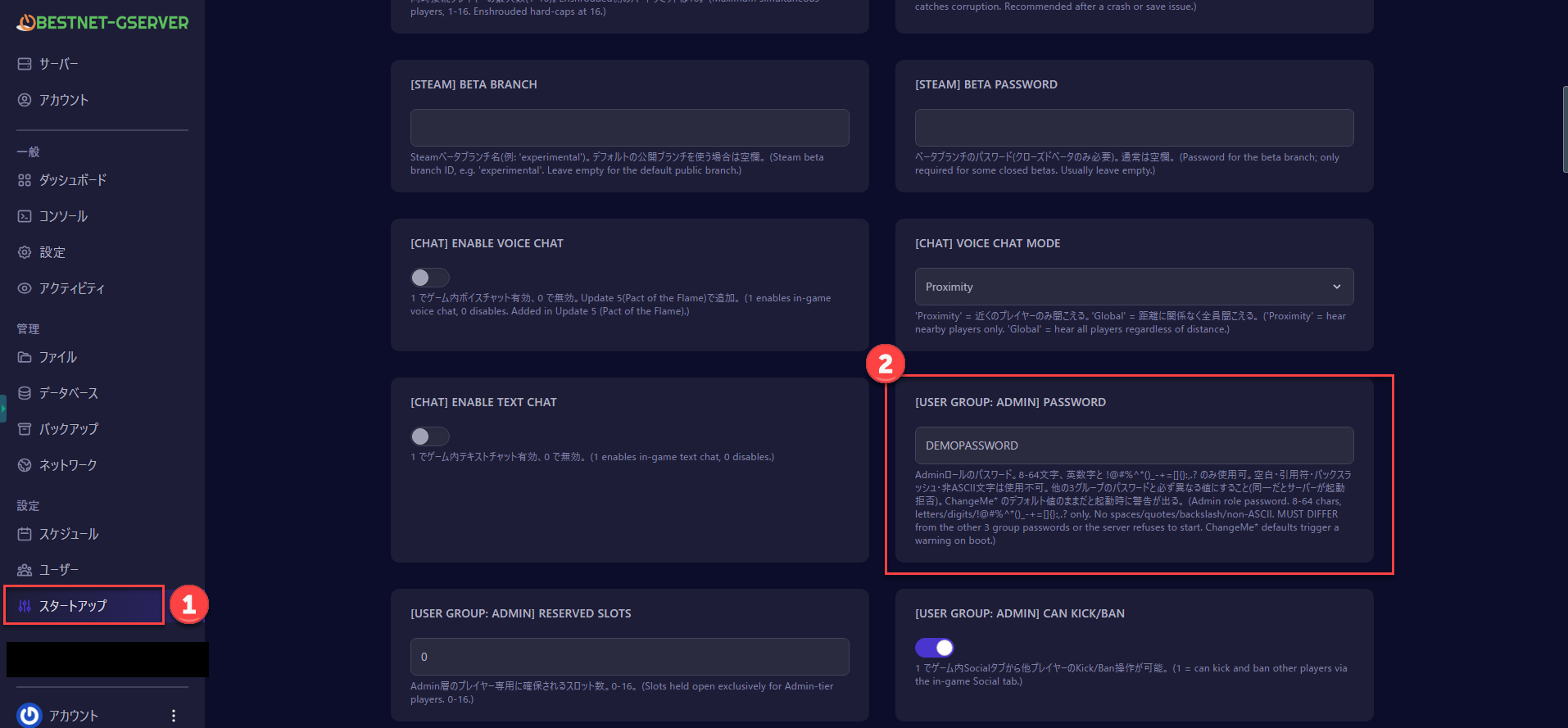
Password changes take effect after the server is restarted.
Start the Server
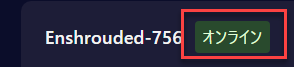
Click the “Start” button in the upper right corner of the server console screen to start the server.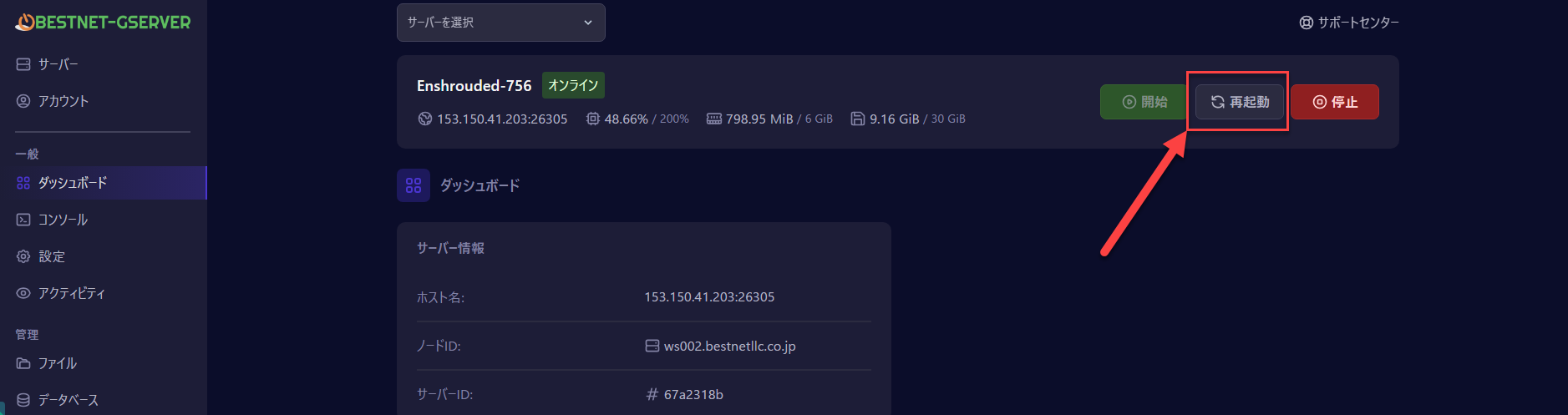
Connect from Game Client
Launch “Enshrouded” on Steam and select “Multiplayer” from the main menu.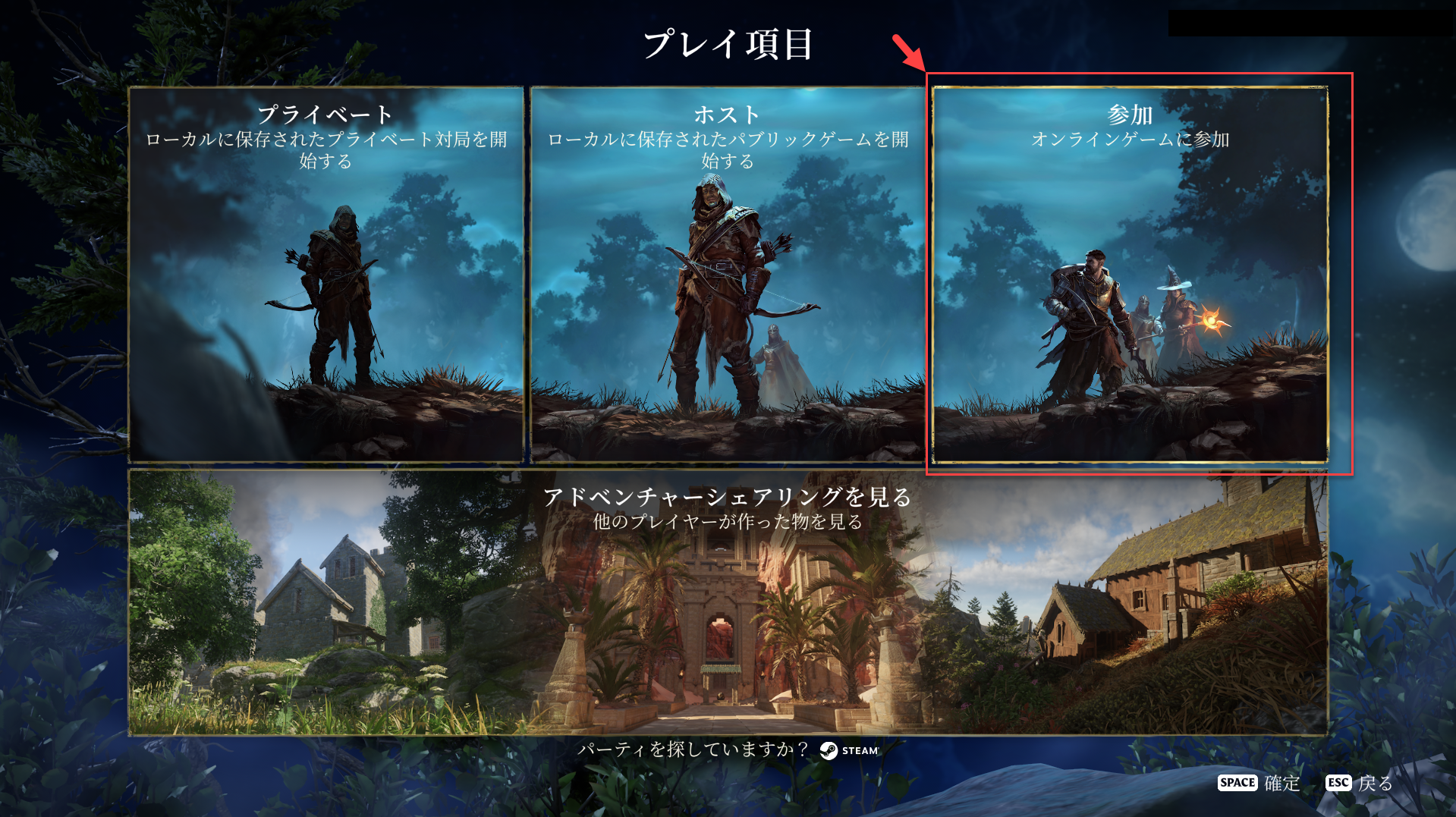
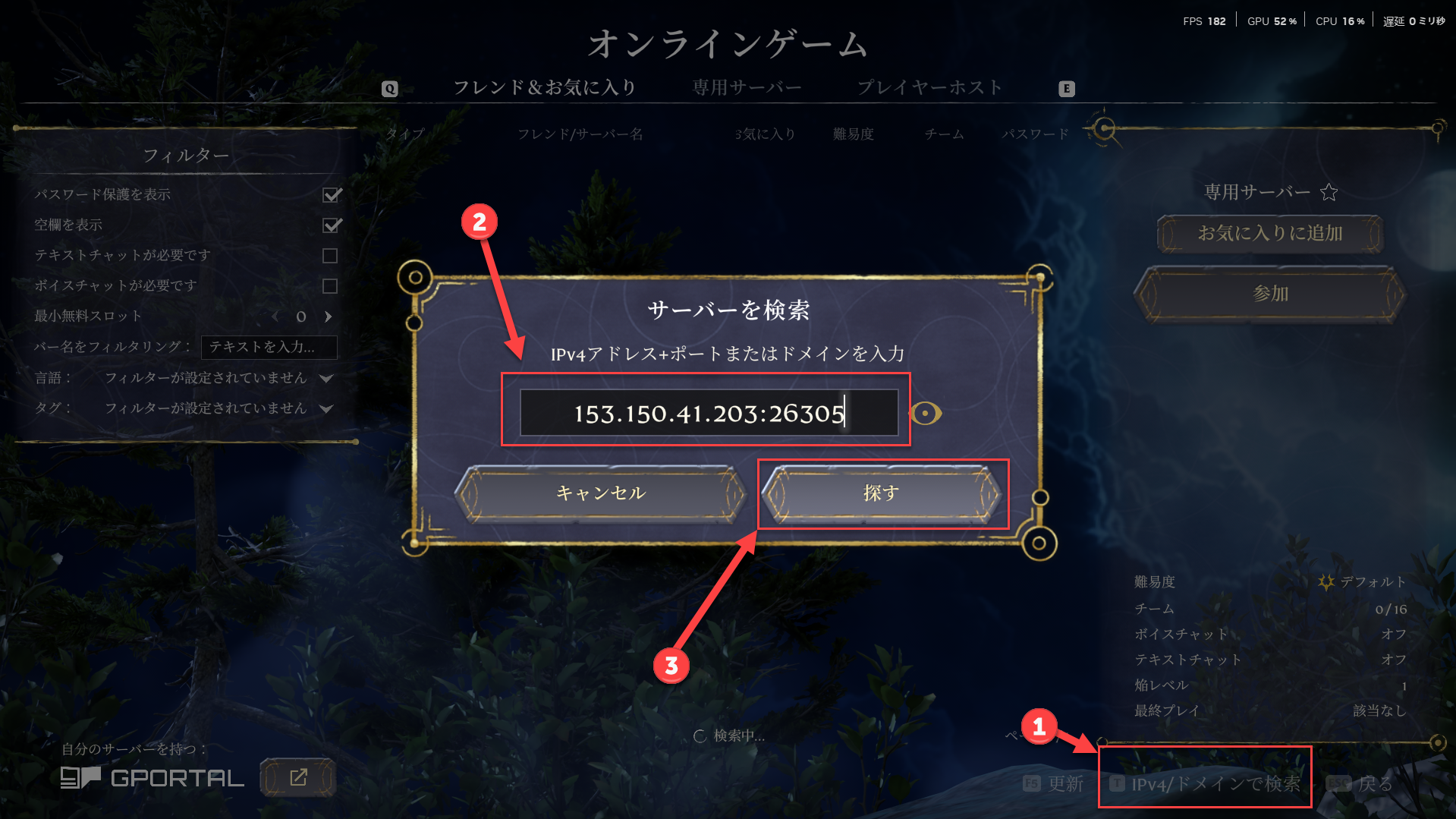
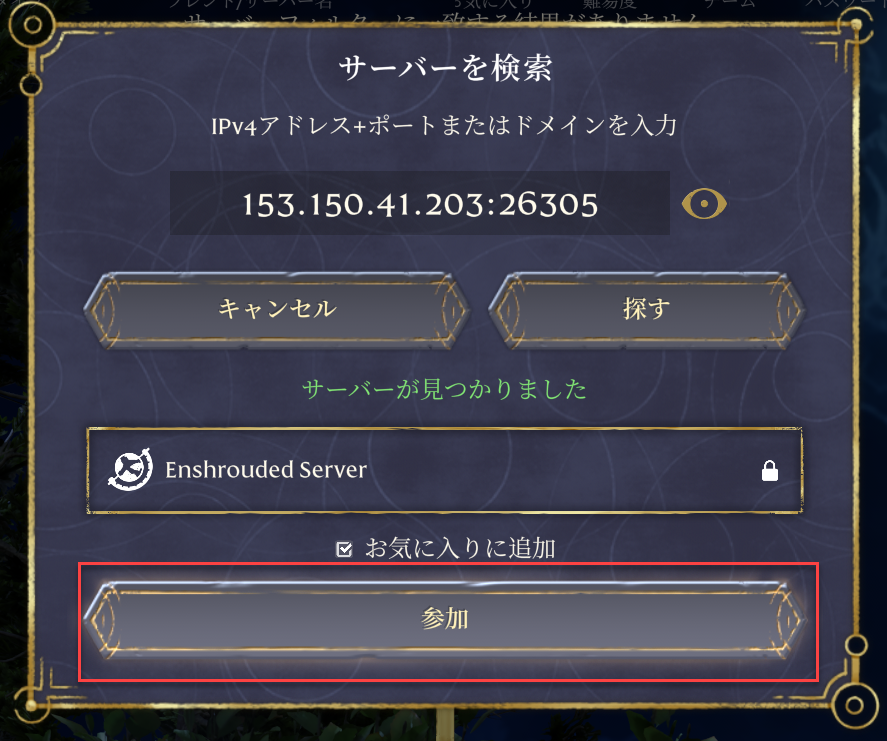
Troubleshooting Startup Failures
On rare occasions, the initial construction immediately after ordering may not complete fully due to conditions with the file distribution source (Steam), resulting in server startup failure.If you observe symptoms such as the server not starting when you press the “Start” button, the status returning to “Offline” within seconds to tens of seconds after attempting startup, or console messages displaying
For specific reinstall procedures, please see the following article.Server Reinstall Procedures When Server Won’t Start →If the issue persists, please reply to the support ticket automatically issued at the time of your order, or submit a new ticket from the Support Center.Init_Steamworks or Exit code: 3, executing “Reinstall” from the game panel will almost certainly resolve the issue.Customize Advanced Settings
This article covers basic connection procedures. The Enshrouded server allows you to operate a total of 78 items across difficulty, permissions, chat, and basic server settings all from the Japanese localized game panel.Fine-tuning to match your community is possible, including player health multiplier, enemy damage multiplier, experience multiplier, and 4-tier permission group management (Admin / Friend / Guest / Visitor).