
- How to Upgrade/Downgrade Game Servers
- 1. Prerequisites
- 2. About Game Server Upgrades/Downgrades
- ・A daily prorated charge for the remaining service period at the time of upgrade/downgrade will be added to the bill or refunded to the deposit.
- ・For downgrade refunds, the daily prorated amount will be refunded only to the deposit in your client portal account.
- 3. How to Upgrade/Downgrade
How to Upgrade/Downgrade Game Servers
1. Prerequisites
Our system supports multiple languages in most areas.
For the client portal, the display language is automatically set based on the country code of your access location IP.
The images used in this article are displayed in English, but your native language will actually be set as the display language. (Japanese, Korean, Chinese, English)
2. About Game Server Upgrades/Downgrades
Our game servers can be easily upgraded or downgraded from the client portal.
When upgrading or downgrading, there is no need to restart the server—you can perform the operation while the server is running.
This allows flexible usage, such as downgrading during periods when the server is not in use to save costs, and upgrading only when you need to use it or when you expect high concurrent connections.
Please be aware that billing for upgrades/downgrades operates as follows:
・A daily prorated charge for the remaining service period at the time of upgrade/downgrade will be added to the bill or refunded to the deposit.
・For downgrade refunds, the daily prorated amount will be refunded only to the deposit in your client portal account.
3. How to Upgrade/Downgrade
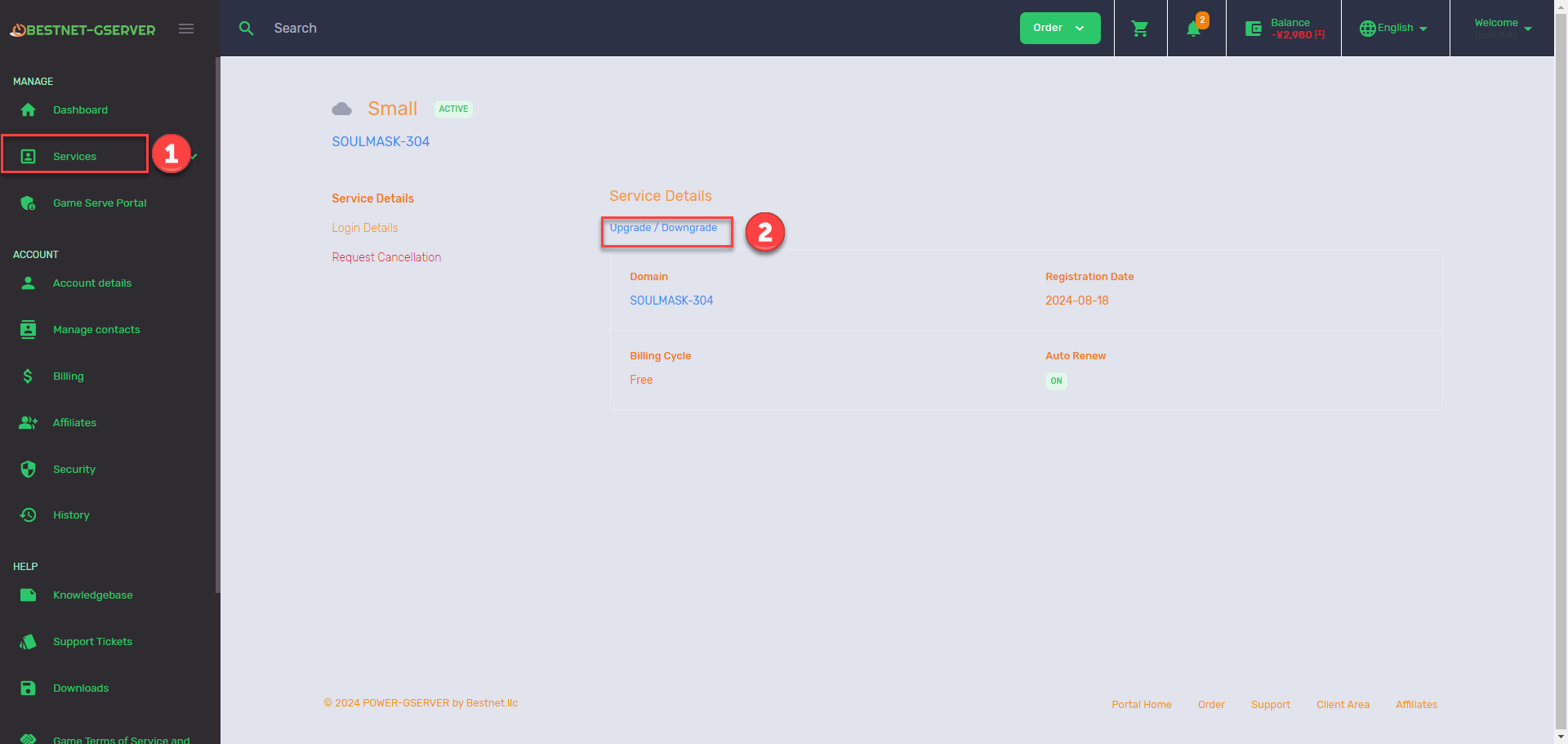
Select the corresponding server instance from “Services” in the client portal.
Click the “Upgrade/Downgrade” button on the service overview page.
On the transition screen, select the plan name and click “Continue”.
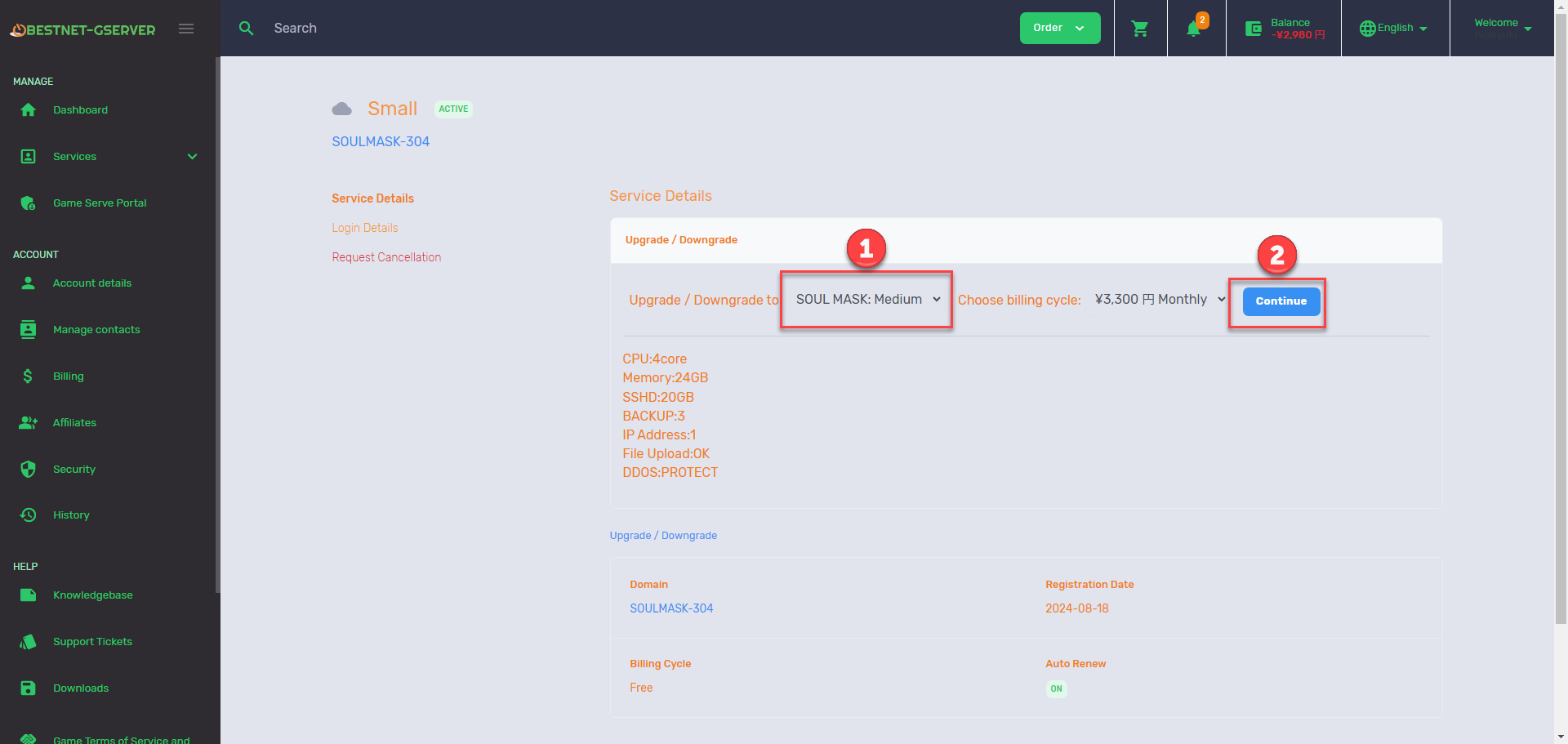
For upgrades, an additional charge will be incurred, so a payment screen will be displayed.
Once payment is complete, the game server upgrade will be executed.
For downgrades, a daily prorated refund for the remaining service period will be processed from the time of the downgrade request, and the game server downgrade will be executed.