
Prerequisites
Please log in to the Game Panel. For instructions on how to log in to the Game Panel, please see here.
Revision History
- 1.0:
- Creation Date: 2024/8
- Update Details: Initial version created
- Creator: BESTNET-GSERVER
STEP1. Wait for Installation to Complete
When you complete your application and the service status becomes active, the game server installation will begin. During installation, the screen will appear as shown in the image below, and most information will not be viewable. This screen typically completes in a few minutes, but may take several tens of minutes if the server load is high or if the installation files are large.
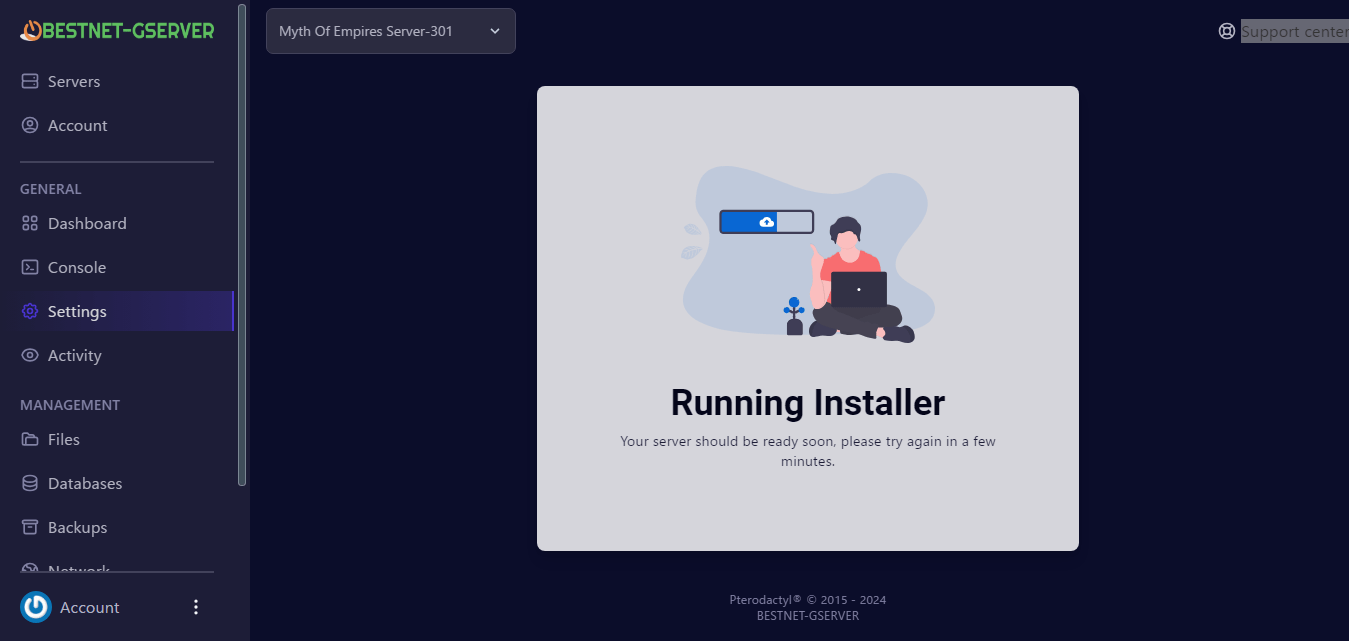
When the server installation is complete, our game panel system will send an installation completion message to your email address.
STEP2. Confirm Game Port
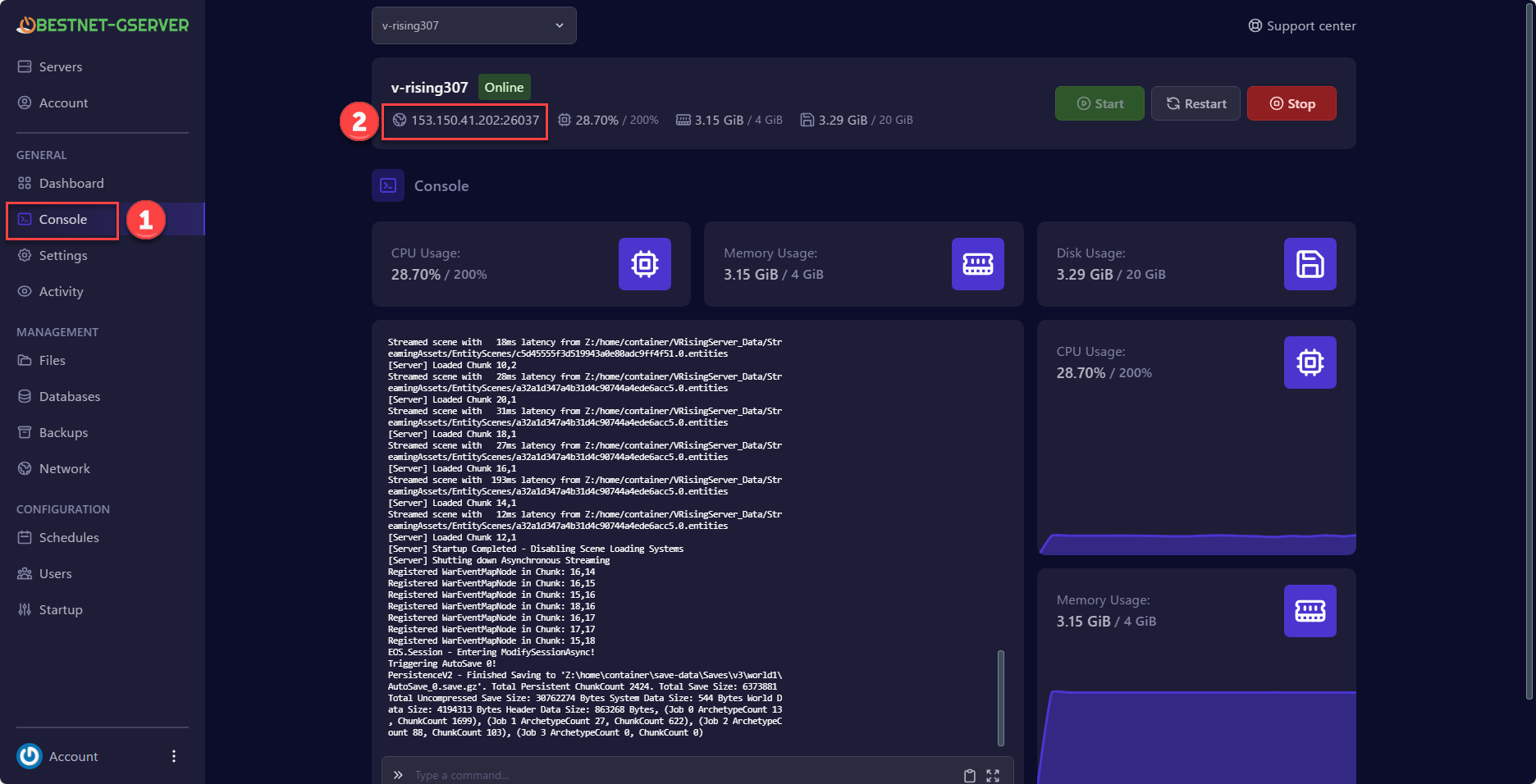
You can confirm the game port in the server console of the game panel. In the image below, the Game port number is 26313. Clicking on the area marked with a red frame in the image will automatically copy it.
STEP3. Add Port Allocations
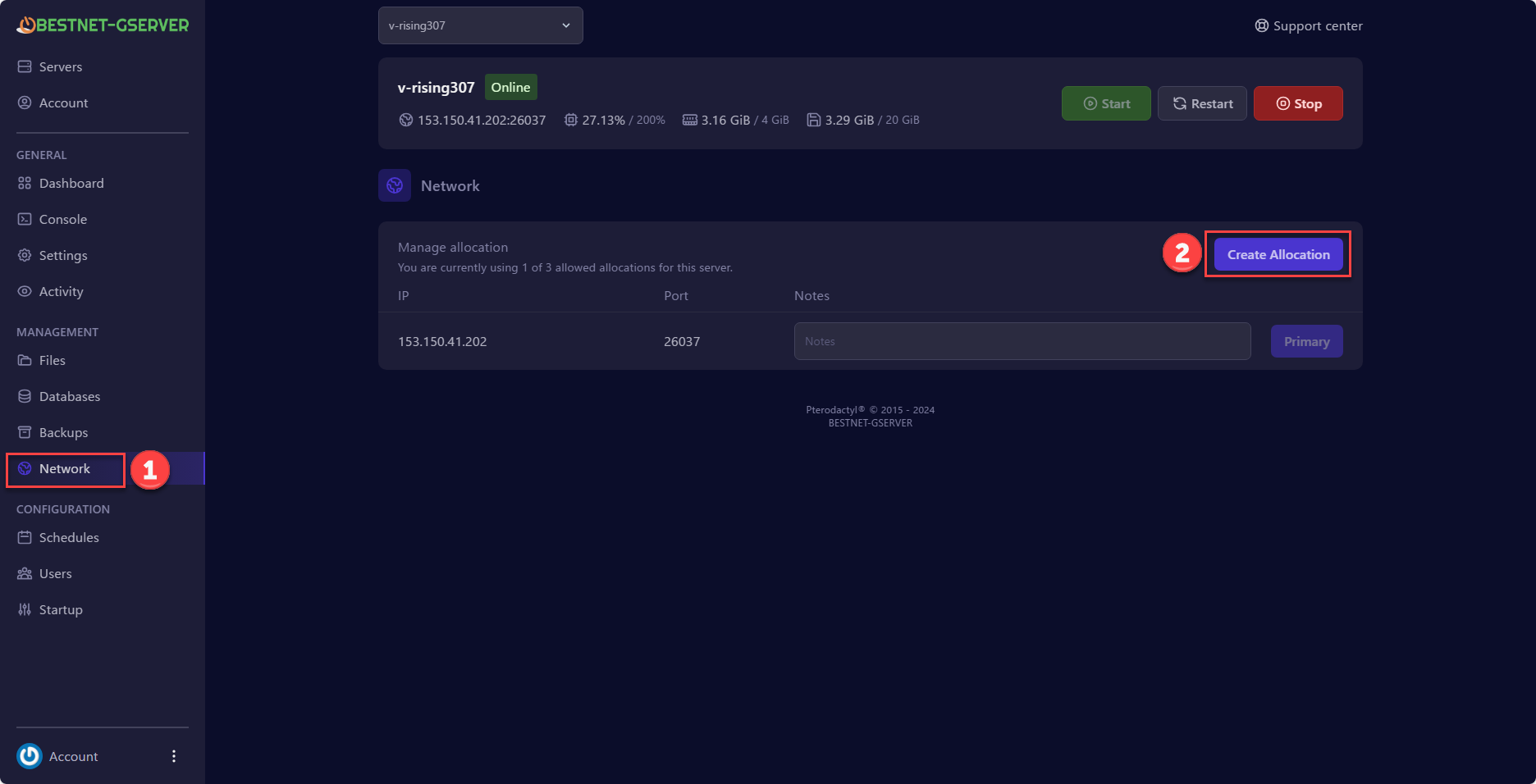
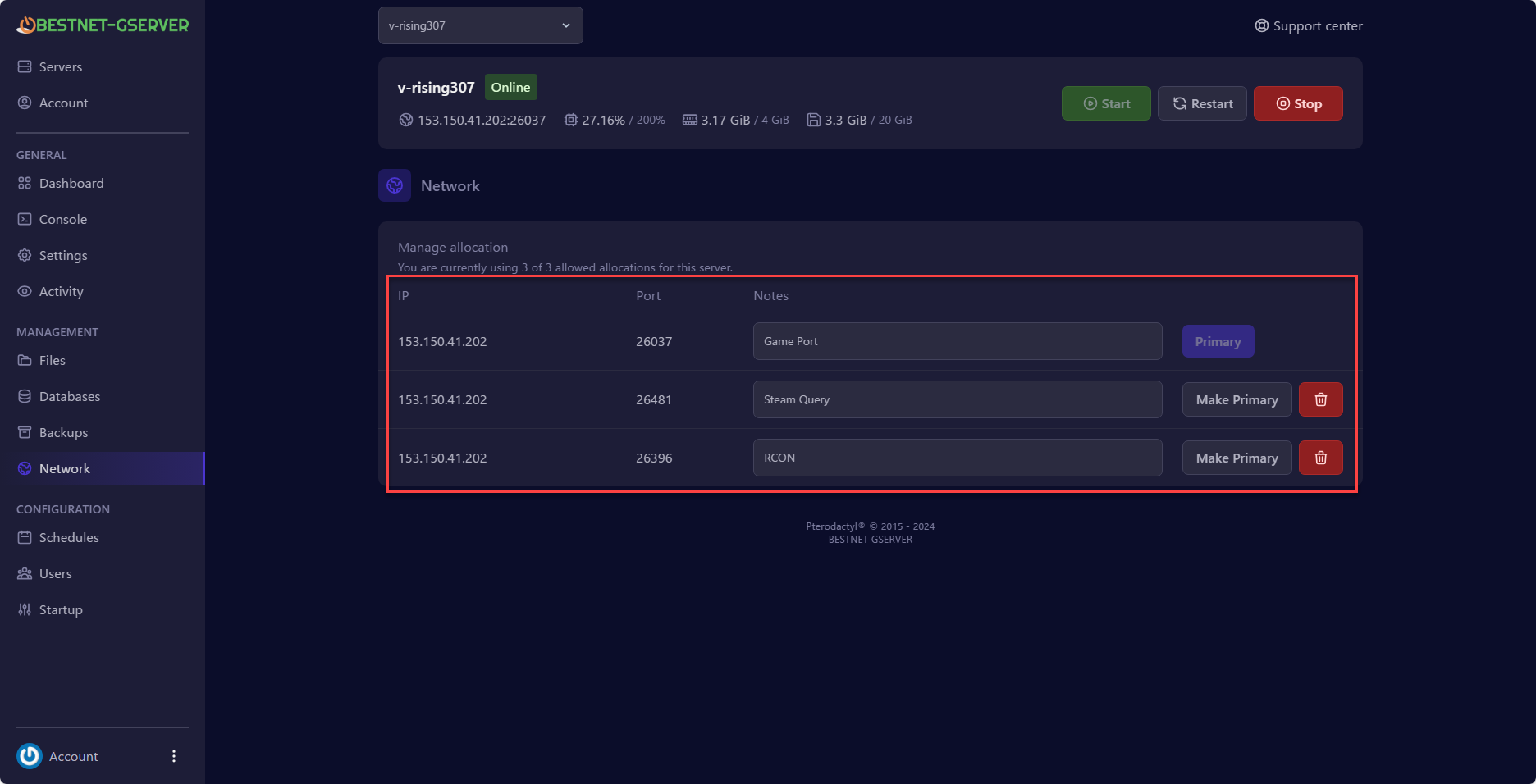
The V Rising game server requires 2 additional ports in addition to the game port. Navigate to the ‘Network’ tab in the game panel and click the ‘CREATE ALLOCATION’ button twice. This will add 2 ports as shown in the image below. ※There is a function to note the role of each port to avoid confusion. In the image below, the role of each port is listed※
Additional 1 Port (in the case of the reference image)
1:26037=Game Port
2:26482=Steam Query
3:26396=RCON
STEP4. Configure Steam Query Port
You need to make the game server recognize the additionally allocated port numbers.
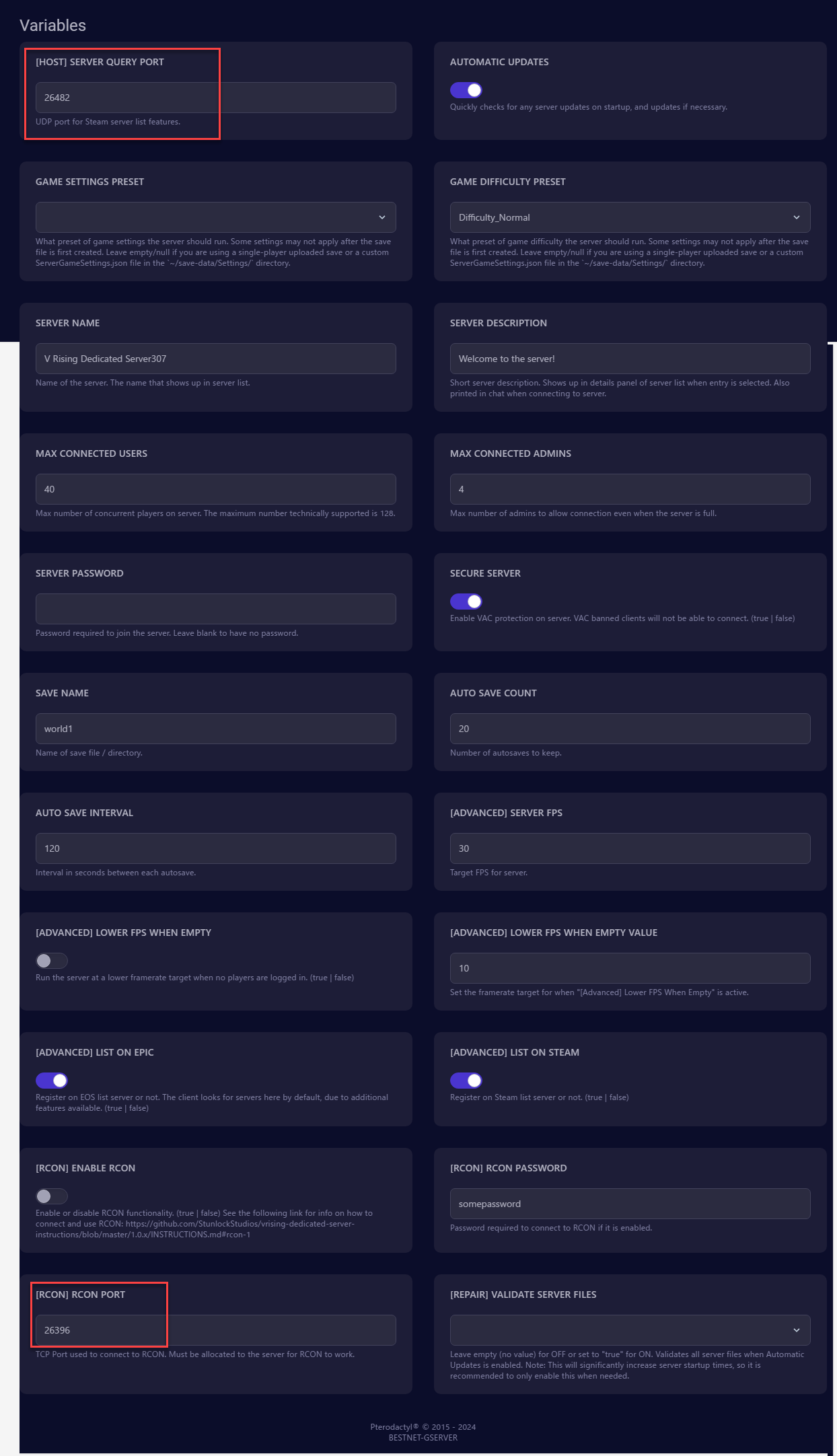
Click on “Startup” in the right menu of the game panel and simply enter the additionally allocated port numbers in the setting boxes for “QUERY PORT” and “RCON PORT”.
In the example in this article, the port numbers 26482 and 26396 allocated in the previous step are entered in the “STEAM QUERY PORT” and “RCON PORT” setting boxes respectively.
STEP5. Apply Settings
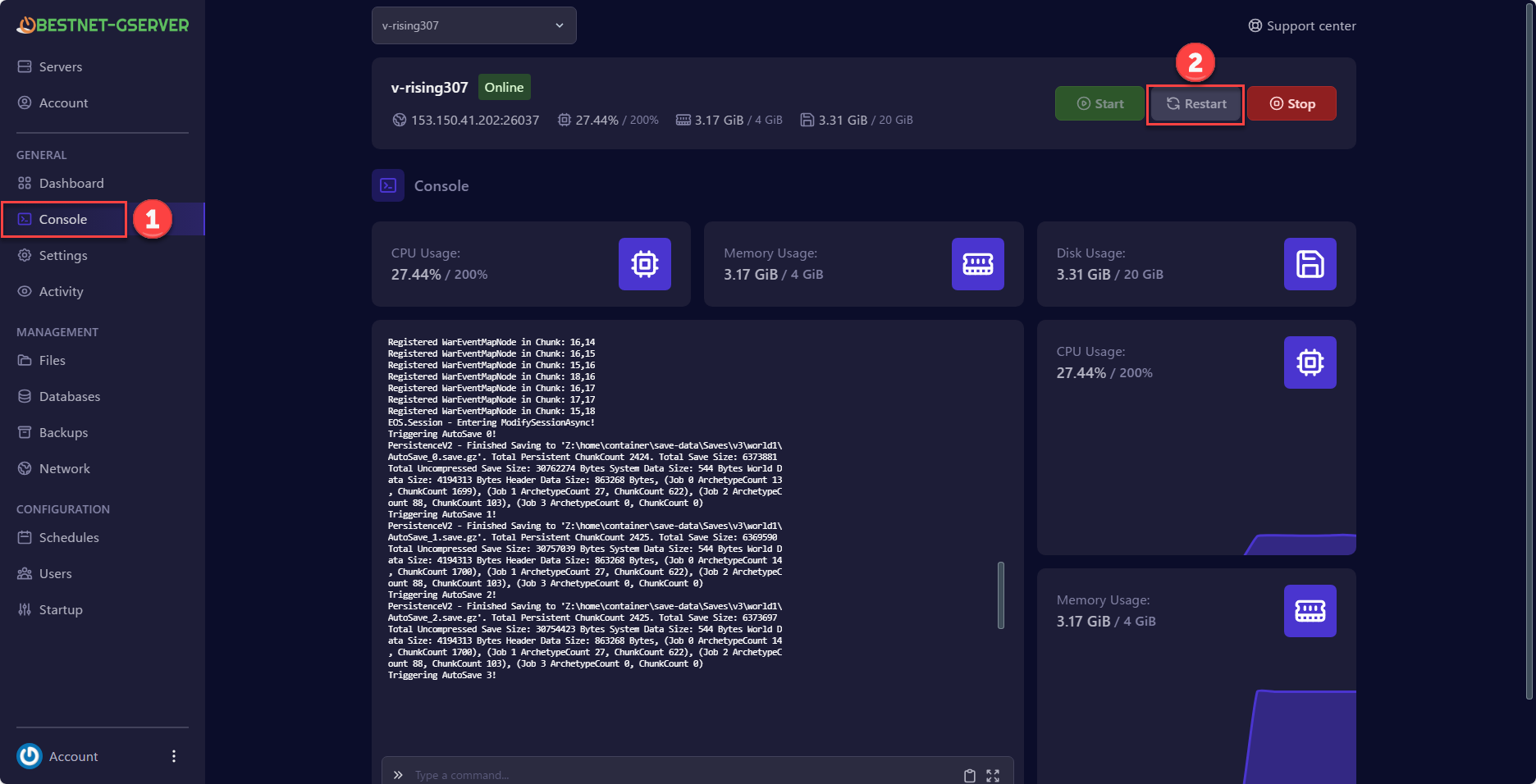
To apply these settings, you must restart the server. Navigate to the ‘Console’ tab and click the ‘Restart’ button to perform the restart.
If you have any other questions, please submit a ticket.